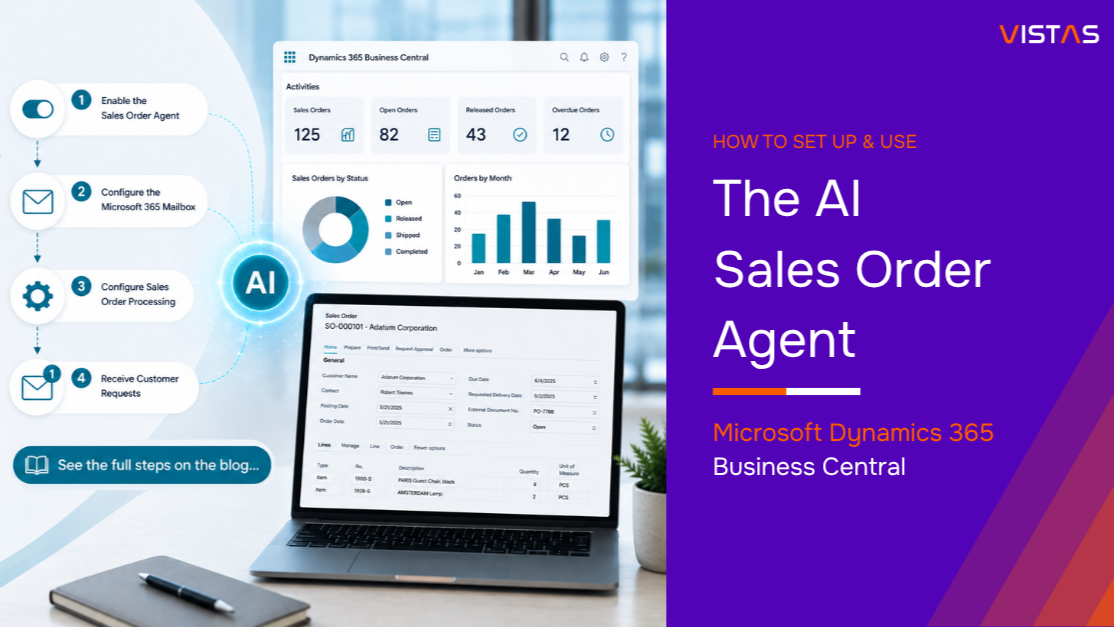
Sales teams need to process orders quickly without sacrificing accuracy, but manually reviewing customer emails, entering order details, and verifying information can pull time away from customer engagement.
The new Sales Order Agent in Microsoft Dynamics 365 Business Centralintroduces AI-powered automation that helps businesses transform incoming customer requests into ready-to-review sales orders. Instead of manually creating every order, the agent analyzes emails, extracts order information, and prepares draft sales orders for your team to review and approve.
This guide explains what the Sales Order Agent does, what prerequisites must be in place, how to configure the feature, and how to review AI-generated draft sales orders before they enter your normal fulfillment process.
What is the Sales Order Agent?
The Sales Order Agent is an AI-powered capability in Business Central that assists sales teams by automatically creating draft sales orders from customer requests.
Instead of spending time copying information from emails or documents, users review AI-generated draft sales orders before releasing them into the normal order fulfillment process.
Using the Sales Order Agent can help sales teams achieve four practical outcomes:
- Faster order processing
- Reduced manual data entry
- Improved order accuracy
- More time for customer service and sales activities
Because the feature is built directly into Business Central, organizations can take advantage of AI without integrating third-party applications.
Benefits of Using the Sales Order Agent
Save Time
The agent automatically extracts customer information, products, quantities, and other order details from incoming communications.
Reduce Errors
Manual typing often leads to incorrect quantities, pricing, or item numbers. AI minimizes these mistakes by intelligently matching customer requests with existing Business Central records.
Improve Productivity
Sales representatives spend less time creating documents and more time assisting customers and closing opportunities.
Built into Business Central
Everything happens within the Microsoft ecosystem, making deployment secure, familiar, and easy to manage.
Prerequisites Before You Begin
Before configuring the Sales Order Agent, confirm that your Business Central environment is on a supported version, Copilot and AI capabilities are enabled, users have the required permissions, and the customers and items referenced in incoming orders already exist in Business Central. These prerequisites help the agent match customer requests to the correct records and reduce review exceptions later in the process.
Before enabling the Sales Order Agent, confirm that the feature is available in your Business Central version and region, that Copilot capabilities are enabled for your environment, and that your organization has reviewed Microsoft’s current documentation for setup requirements. This helps prevent configuration delays and ensures the guidance in this article aligns with your tenant’s capabilities.
Step 1: Enable the Sales Order Agent
Before using the Sales Order Agent, you must enable and activate it in Business Central.
Navigate to:
- Open Business Central.
- If the Sales Order Agent icon is available, select it and click Activate.
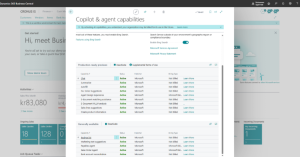
- If the icon isn’t visible, open Tell Me (Alt + Q), search for Copilot & agent capabilities, and enable Sales Order Agent.
- Return to your Role Center and select Sales Order Agent to begin the activation process
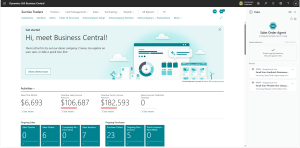
Complete the initial setup by:
- Enabling Copilot capabilities
- Accepting the required terms
- Confirming that your environment supports AI features
- Saving the configuration
Once enabled, Business Central is ready to begin processing incoming customer orders.
Step 2: Configure the Microsoft 365 Mailbox
Next, specify where customer orders will arrive.
Select the Microsoft 365 user or shared mailbox that Sales Order Agent will monitor for customer requests.
- Shared sales mailbox
- Outlook inbox
- Customer service email
- Order request email account
The Sales Order Agent can monitor configured communications and help identify messages that contain purchase requests.
Step 3: Configure Sales Order Processing
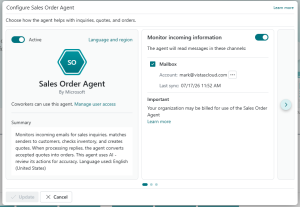
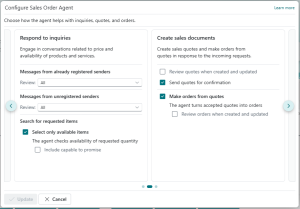
After connecting your Microsoft 365 mailbox, configure how the Sales Order Agent handles incoming customer requests.
Select the options that best fit your business process:
- Monitor incoming informationto detect new customer emails.
- Review quotes when createdto review AI-generated sales quotes before they’re sent to customers.
- Make orders from quotesto automatically create a sales order after a customer accepts the quote.
- Review orders when createdto review AI-generated sales orders before processing.
These settings help automate your sales workflow while keeping users in control of the review and approval process.
Once you’ve selected your preferred options, click Update to save the configuration.
Step 4: Receive Customer Requests
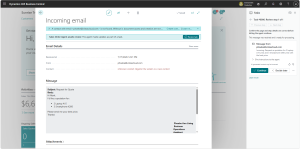
After setup is complete, the Sales Order Agent monitors your configured Microsoft 365 mailbox for new customer emails.
Example:
Subject:Request for Quote
Hi,
I’d like a quotation for:
- 2 Laptop A15
- 3 Smartphone X200
Please send me your best price.
Thanks!
The Sales Order Agent reads the email, identifies the requested items, and prepares a draft sales quote that you can review before sending it to the customer.
Step 5: Review the AI-Generated Sales Quote
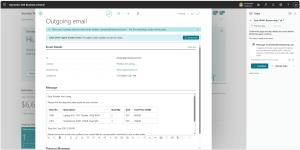
Before sending the quote to the customer, review the AI-generated draft to ensure all details are accurate.
Verify the following:
- Customer information
- Requested items
- Quantities
- Pricing
- Delivery details
- Requested shipment date
You remain in full control and can edit any information before approving and sending the quote.
Recommended Review Checklist
Compare the AI-generated sales quote with the customer’s original request. Confirm that the customer account, item numbers, quantities, pricing, requested delivery date, ship-to address, and any special instructions are correct. If any information is missing or inaccurate, make the necessary changes before sending the quote.
Step 6: Convert the Quote into a Sales Order
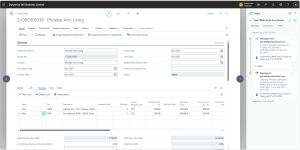
Once the customer accepts the sales quote, open the quote in Business Central and convert it into a sales order. If Make orders from quotesis enabled, the Sales Order Agent can automatically create the sales order for you.
Review the generated sales order to ensure all details are accurate before proceeding.
From there, continue with your standard Business Central sales process, including:
- Warehouse shipment
- Inventory updates
- Invoice generation
- Customer fulfillment
The Sales Order Agent streamlines the order creation process while keeping you in control of reviewing and approving each step.
Where Does the Sales Order Agent Deliver the Most Value?
Organizations that process a high volume of customer orders can benefit significantly from AI-assisted order creation.
Typical industries include:
Wholesale Distribution
Process large customer orders with greater speed while reducing manual entry.
Manufacturing
Automatically capture recurring customer orders and streamline production planning.
Retail and eCommerce
Convert emailed purchase requests into sales orders without manually entering every line item.
Business Services
Respond faster to customer requests while maintaining accuracy throughout the sales cycle.
Why Adopt AI for Sales Order Processing?
AI is becoming an essential part of modern ERP systems, helping organizations improve efficiency without changing their existing business processes.
With the Sales Order Agent, businesses can:
- Increase order processing speed
- Improve data accuracy
- Reduce repetitive administrative work
- Scale operations more efficiently
- Deliver faster responses to customers
Because the solution works with Business Central data and configured matching rules, it can help recognize customers, products, and ordering patterns more efficiently when the underlying records are accurate and maintained.
Important Considerations
AI-assisted order creation should be treated as a productivity aid, not a replacement for user review. Results depend on the quality of customer, item, pricing, and inventory data in Business Central, as well as the clarity of the customer’s request. Organizations should define review procedures, security expectations, and exception-handling rules before relying on the agent in daily operations.
Final Thoughts
The AI-powered Sales Order Agent is a practical example of how Microsoft is bringing intelligent automation into everyday ERP processes. By reducing manual work and accelerating sales order creation, businesses can improve efficiency while giving sales teams more time to focus on building customer relationships.
At VISTAS Cloud, we help organizations unlock the full potential of Microsoft Dynamics 365 Business Central, from implementation and user training to AI-powered capabilities like the Sales Order Agent. If your team is exploring Copilot, modernizing order management, or planning your next ERP upgrade, we can help you evaluate the right next step and move forward with confidence.