Google Workspace to Microsoft 365 Migration: What Can Go Wrong and How to Fix It
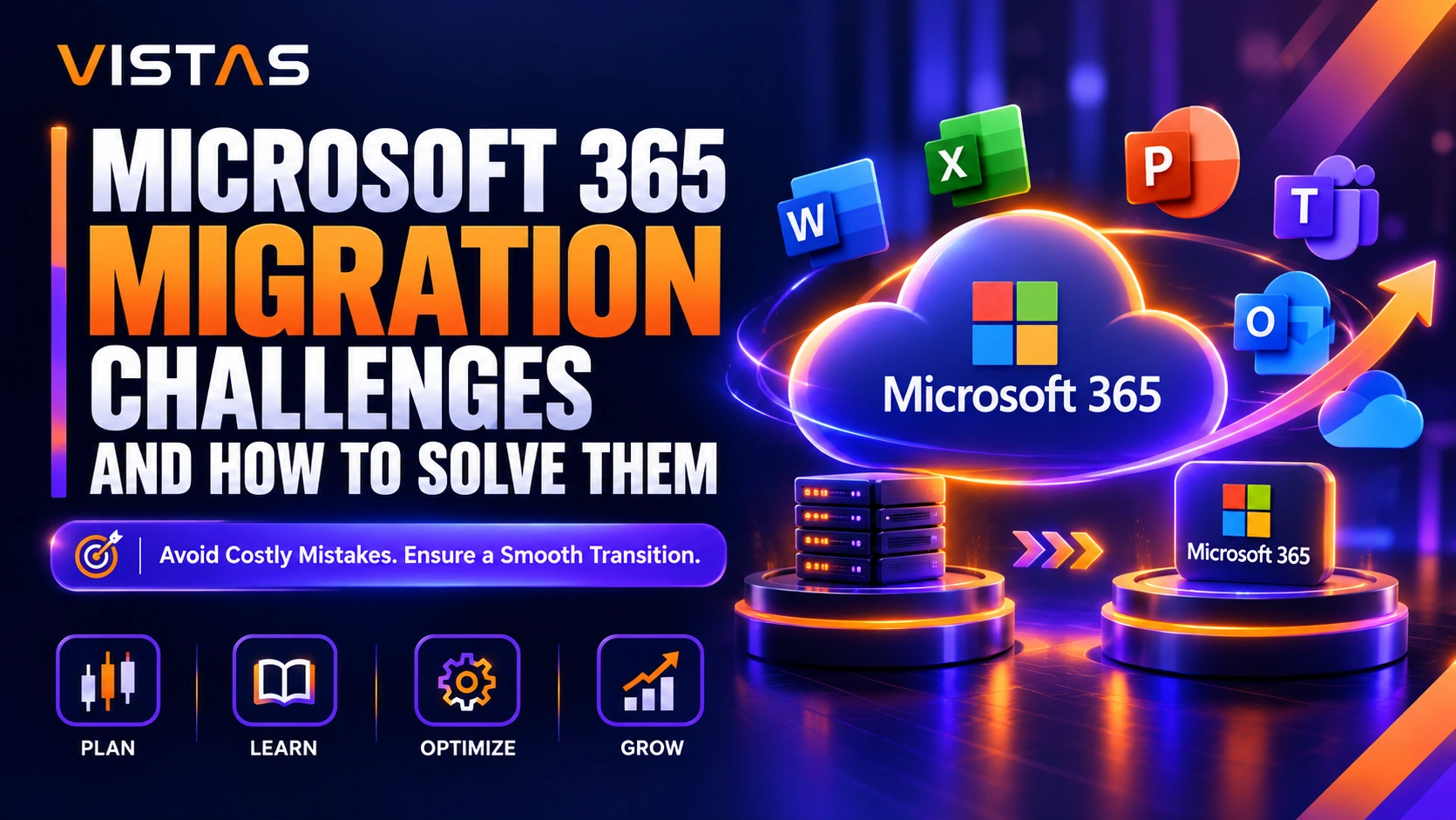
Migrating from Google Workspace to Microsoft 365 is more than migrating email and files.Google does email, files, permissions, identities, calendars and collaboration its way. Microsoft 365 fixes this in a way.Without careful planning, you may end up with emails bouncing angry users, links, missing access rights, messy folders or calendar conflicts.
VISTAS Cloud helps businesses to plan. VISTAS Cloud migrates from Google Workspace to Microsoft 365.
It starts with an image of your Google configuration. Then it learns how your data fits into Microsoft 365. Allows you to test the migration before the switch.
10 Problems with Migrating from Google Workspace to Microsoft 365 and How to Fix Them.
Gmail Labels Do Not Map Directly to Outlook Folders
The challenge
Gmail uses labels to organize email. Outlook relies heavily on folders.
Gmail lets you assign several labels to one email.
For example, one email might have three labels:
- Customer
- Project A
- Invoices
During migration, those labels might become separate Outlook folders. This creates several possible issues:
- Duplicate emails
- Unexpected folder structures
- Too many folders
- Missing label relationships
- Confusing nested folders
Users with years of Gmail labels often face the biggest challenge.
How to solve it
Review Gmail labels before migration.
Identify:
- Labels users still need
- Unused labels
- Nested labels
- System labels
- Duplicate labels
- Labels with large amounts of email
Then create a Labels-to-Folders mapping plan.
A pilot migration provides another important check. Your team gets to see how Gmail labels appear in Outlook before you move the rest of your users.
Google Drive and Microsoft 365 Store Files Differently
The challenge
Another common migration issue is moving all Google Drive files to OneDrive.
Microsoft 365 distinguishes files from shared business content.
OneDrive is more, about files related to users.
SharePoint supports shared content for organizations and departments.
Files are also stored in SharePoint within Microsoft Teams channels.
How to solve it
Review your Google Drive environment before moving files.
Separate content into categories:
- Personal files
- Department files
- Project files
- Company resources
- Shared Drive content
- Archived files
Personal work files are usually best kept in OneDrive.
Shared business files are usually best kept in SharePoint or Microsoft Teams.
The main point is to pick where the files should go before starting the move of putting everything in OneDrive and then sorting it out later.
Google Docs, Sheets, and Slides Might Change During Conversion
The challenge
Google Docs, Sheets and Slides work with Google formats.
Microsoft 365 users work with Word, Excel and PowerPoint.
Complex files need attention during conversion.
Problems might involve:
- Formatting
- Formulas
- Charts
- Comments
- Links
- Embedded content
- Advanced spreadsheet functions
A complex Google Sheet used for financial reporting needs more testing than a simple document.
How to solve it
Identify important files before migration.
Test complex Google Docs, Sheets, and Slides.
Compare converted files with their Google versions.
Business‑critical documents and spreadsheets deserve care before users begin working with Microsoft versions.
Make a list of documents and validate them during the pilot migration. This helps your team spot conversion problems before they touch the organization.
File Permissions and Sharing Might Not Transfer as Expected
The challenge
Your files are only useful when the right people have access.
Google Drive might contain years of permissions for:
- Employees
- Departments
- Google Groups
- External users
- Vendors
- Customers
- Public links
Microsoft 365 uses its own permission and identity structure.
Poor mapping might leave employees without access. Poor access planning might also expose files to the wrong users.
How to solve it
Audit permissions before migration.
Identify file owners and users with access.
Review external sharing.
Clean out old accounts and old permissions.
Map Google users and groups to correct Microsoft 365 identities.
This is another good opportunity to clean up legacy access before moving data to the new environment.
Google Shared Drives Need the Right Microsoft 365 Destination
The challenge
Google Shared Drives belong to teams rather than individual users.
Moving a Shared Drive into one employee’s OneDrive creates ownership and access problems.
How to solve it
Review each Shared Drive.
Determine who owns the business process, who needs access, and how employees use the files.
Then map the content to the right destination:
- SharePoint sites
- Microsoft Teams
- Department document libraries
- Project SharePoint sites
For example, a Marketing Shared Drive might move to a Marketing SharePoint site.
You can migrate a project Shared Drive to the SharePoint site associated with its Microsoft Team.
The destination should be determined by the content’s usage, the content’s owner and the way employees need to collaborate post migration.
Calendar Migration Might Create Scheduling Problems
The challenge
Calendar functions in Google Calendar and Microsoft Outlook are treated differently.
Problems often involve:
- Recurring meetings
- Shared calendars
- Conference rooms
- Resource calendars
- Delegated calendars
- Historical meetings
- Meeting invitations
How to solve it
Test calendars during your migration pilot.
Include users with complex calendars.
Executives, assistants and meeting organizers who manage shared resources make good test cases.
Before moving the organization your migration team should check recurring meetings, shared calendars, room bookings and delegate access.
Testing these situations early can help you spot scheduling problems before the switch.
Microsoft 365 Equivalent of Google Groups Does Not Have Oner.
Google Groups Do Not Have One Microsoft 365 Equivalent
The challenge
Organizations use Google Groups for different jobs.
One group might distribute email.
Another controls file access.
Another supports collaboration.
Microsoft 365 offers several options:
- Distribution lists
- Security groups
- Microsoft 365 Groups
- Shared mailboxes
- Microsoft Teams
Moving every Google Group into the same Microsoft group type creates problems.
How to solve it
Review the purpose of each Google Group.
Then select the right Microsoft 365 destination.
Examples:
- Email distribution group → Distribution list
- File access group → Security group
- Department collaboration group → Microsoft 365 Group or Team
- Shared department email → Shared mailbox
This approach prevents organizations from simply recreating every Google Group without considering whether it is still required.
Identity and Authentication Issues Might Block User Access
The challenge
Before your users can start using Microsoft 365 they must have working Microsoft identities.
Users may find they cannot open email or files if there are problems, with their username, domain, password, licensing or authentication.
Microsoft Entra ID becomes an important part of the new environment.
How to solve it
Plan identity before moving production data.
Review:
- User accounts
- Domains
- Usernames
- Microsoft 365 licenses
- Multi-factor authentication
- Security groups
- Authentication policies
- Application access
VISTAS Cloud helps organizations with Microsoft 365 tenant creation, licensing, identity setup, and related migration needs.
Finalizing cutover. Test user logon.
Users should know how to sign in before their Google Workspace access changes.
Migration Might Interrupt Daily Business
The challenge
Your employees depend on email, calendars, meetings, and files throughout the workday.
Migration problems might result in:
- Missing email
- Delayed email
- Unavailable files
- Calendar problems
- Login failures
- User confusion
- Increased support requests
How to solve it
Start with a pilot group.
Choose users from different departments and job roles.
Test:
- Outlook folders
- Calendars
- Contacts
- Files
- Permissions
- Microsoft Teams
- OneDrive
- SharePoint
- User authentication
A phased migration can reduce the number of users affected by unexpected problems at one time.
It also gives the migration team an opportunity to fix issues before moving the remaining users.
Users Need Help Moving from Google Workspace to Microsoft 365
The challenge
Moving the data does not finish the project.
Employees need to change how they work.
Gmail becomes Outlook.
Google Drive becomes a mix of OneDrive and SharePoint.
Google Meet becomes Microsoft Teams.
Google Docs, Sheets, and Slides move toward Word, Excel, and PowerPoint.
Without preparation, users often struggle to understand where files belong and which Microsoft application they should use.
How to solve it
Include user adoption in your migration plan.
Focus training on common transitions:
- Gmail to Outlook
- Gmail Labels to Outlook Folders
- Google Drive to OneDrive
- Google Shared Drives to SharePoint
- Google Meet to Microsoft Teams
- Google Docs to Microsoft Word
- Google Sheets to Microsoft Excel
- Google Slides to Microsoft PowerPoint
Simple training and clear documentation can help employees become comfortable with the new Microsoft 365 environment.
Why Work with VISTAS Cloud for Your Google Workspace to Microsoft 365 Migration?
A Google Workspace migration touches several parts of your technology environment at once.
Email needs to reach Exchange Online.
Personal files need the right OneDrive destination.
Shared files need the right SharePoint structure.
Google Groups need the right Microsoft 365 group type.
Users need working identities.
Permissions need review.
Security needs configuration.
Employees need support.
VISTAS Cloud provides Microsoft 365 consulting and migration services covering areas such as licensing, tenant setup, security, Teams, SharePoint, identity, and ongoing support.
Depending on your organization’s requirements, the migration process may include:
- Google Workspace environment assessment
- Migration planning
- Gmail to Exchange Online migration
- Gmail Labels to Outlook Folders planning
- Google Drive to OneDrive migration
- Google Shared Drives to SharePoint migration
- Google Groups mapping
- Calendar and contact migration
- Microsoft 365 tenant setup
- Microsoft Entra ID configuration
- Microsoft Teams and SharePoint setup
- Microsoft 365 licensing
- Security configuration
- User onboarding
- Post-migration Microsoft 365 support
Having a plan means that email, files, identities, permissions and collaboration tools are all reviewed as part of the one entire process. This approach allows you to address Microsoft 365 migration challenges upfront instead of treating each item as a separate migration task. This makes everything fit together more fluidly and the transition more seamless.
Talk to VISTAS Cloud about your Google Workspace to Microsoft 365 migration.
FAQs
How do you migrate from Google Workspace to Microsoft 365?
Begin by looking at your users, email Google Drive data, Shared Drives, calendars, groups, permissions and applications.
A good move usually includes checking the Google Workspace setup setting up the Microsoft 365 place where everything will go trying the move out moving the information and helping people after the switch is done.
What happens to Gmail labels when you migrate to Outlook?
Gmail labels and Outlook folders work differently.
One Gmail message might have several labels. Migration tools often map those labels to Outlook folders. This process might create duplicate messages or complex folder structures depending on the migration method and configuration.
Review and test your label structure before migrating all users.
Do Gmail labels become folders in Outlook?
Migration tools often move Gmail labels into Outlook folders. The outcome depends on the way you do the migration and how you set it up.
Test your label structure before migrating all users.
Where should Google Drive files go in Microsoft 365?
Personal files usually belong in OneDrive.
Shared departmental and project files usually go in SharePoint or Microsoft Teams.
The right place depends on who owns the files how people need to work what access levels are needed and how the files will be used.
What happens to Google Shared Drives?
Organizations often move content from Google Shared Drives into SharePoint or Teams-connected SharePoint sites.
Before choosing a destination review who owns the content what permissions are, in place. How the content is being used in the business.
Does VISTAS Cloud provide Google Workspace to Microsoft 365 migration services?
Yes. VISTAS Cloud provides Microsoft 365 migration services for organizations moving from Google Workspace.
Services include migration planning, email and file migration, tenant setup, identity configuration, security, licensing, and ongoing Microsoft 365 support.
Why use a Microsoft partner for a Google Workspace migration?
A move is not, about moving data.
You have to think about identities, permissions, email, where files are stored, security, Microsoft 365 licenses, Teams, SharePoint and how users will access everything.
Working with a Microsoft partner such as VISTAS Cloud can provide technical support across these areas under one migration plan.
Planning a Google Workspace to Microsoft 365 Migration?
Start with an assessment, before moving your data.
VISTAS Cloud helps organizations understand their Google Workspace environment plan their Microsoft 365 structure, migrate email and files configure Microsoft 365 and support users after the move.
Your migration starts before the mailbox moves.